
Product guide · Updated
Choose who joins the shared business
Owners and administrators manage scheduling and assign work. Members can update progress and notes on their assigned visits, add photos and open customer contact details or directions.
Members can see business-wide records. This includes jobs, customers, properties, quotes, invoices, payments, expenses and saved business settings, beyond their assigned visits. Assignments organise work; roles control actions. Invite people who should have that visibility.
Read the team roles and invitation guidance before adding staff. Everyone should sign in with their own account and join the correct business.
Before the crew leaves
- Assign the visit. Choose who will handle the work, then check the date, arrival window and estimated duration.
- Check the job details. Include the service address, work to do and access instructions. Put information needed for this visit in its notes.
- Review the day together. Check stop order and any customer changes. Ask the crew to open the day's jobs while they have internet.
The office-assignment example shows the same fictional visit used below. For date changes, follow the rain-delay workflow and tell the affected customer and crew.
Keep a useful record of the visit
On the assigned job, record progress and add a short note explaining what was done or what needs attention. Add before or after photos when useful, then mark the visit complete once the work is finished.
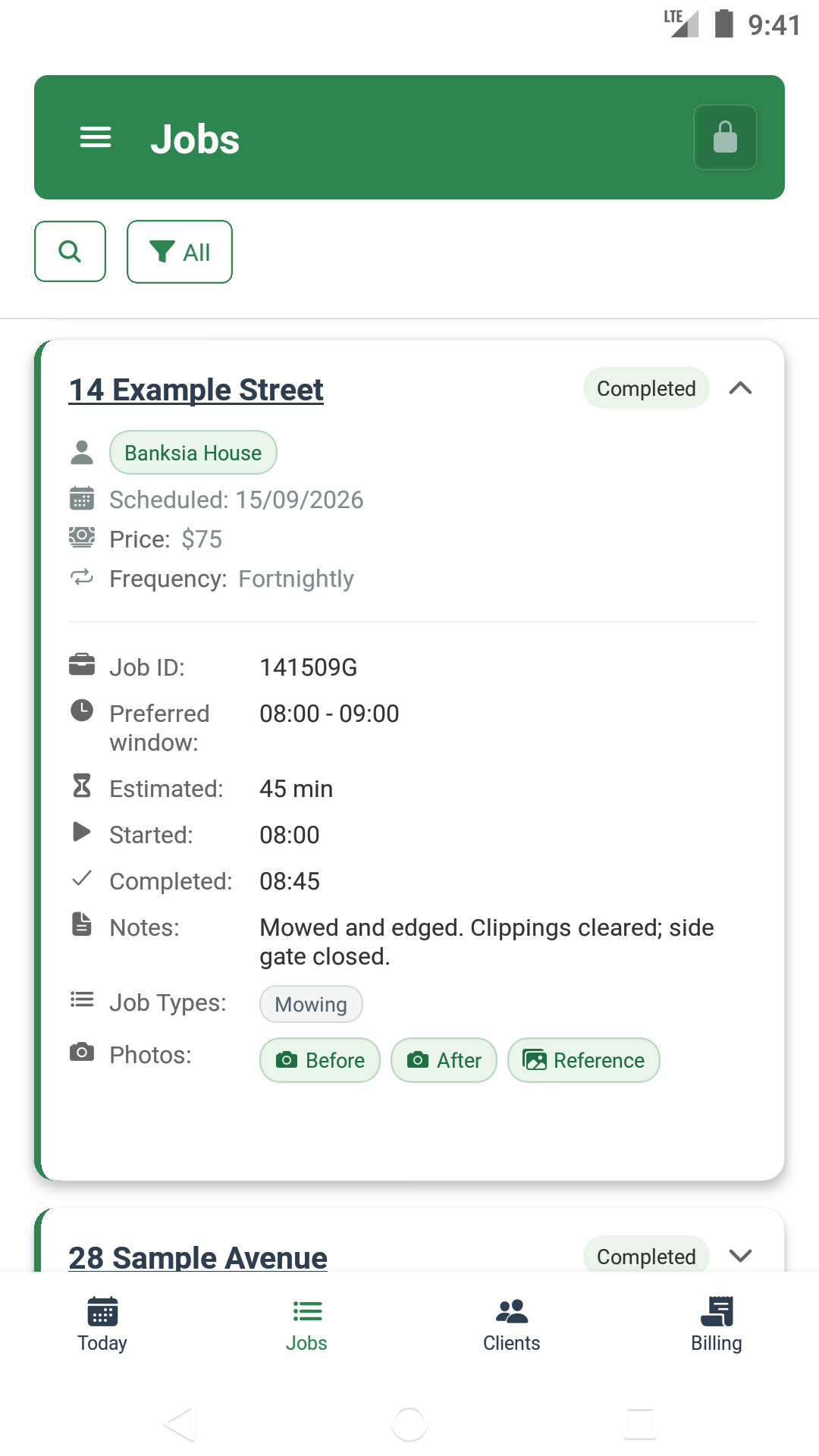
In this example, the note records mowing, edging, cleared clippings and a closed side gate. Use the same level of practical detail for your own work; flag unfinished tasks or access problems so the office can follow up.
Check that changes have saved. A completion marked Queued is waiting to be sent. Reconnect, use Retry in the sync-status panel and confirm the updated job. Photo uploads need internet. See connection help if a change remains uncertain.
Close the loop in the office
- Confirm the completed status, recorded times and work notes.
- Review photos and any unfinished work or customer follow-up.
- Check the next recurring date and who is assigned to it.
- Review the invoice against the work before sharing it.
Do not assume a queued field update is already visible to everyone. If the job still looks unchanged, ask the crew to check its save status before repeating the action.
The lawn care invoicing guide explains the steps from draft review to recording payment. The recurring-date explanation covers what happens after a delayed visit.
Try one visit together
Set up the business, review shared access and assign one visit. Check that the crew can open the right job and that the office can see the saved result.
No card to start. Compare the free and paid plans before adding the rest of your round.