
Product guide · Updated
Start with each property's next visit
Owners and administrators can set up customers, properties and scheduled work. Have the address, service price, frequency, next date and access notes ready. Use an internet connection while setting up the round.
- Add the customer and property. Choose weekly, fortnightly (every two weeks), monthly or one-time work.
- Schedule the next visit. Check its date, arrival window, estimated duration and work notes. Assign the crew member who will handle it.
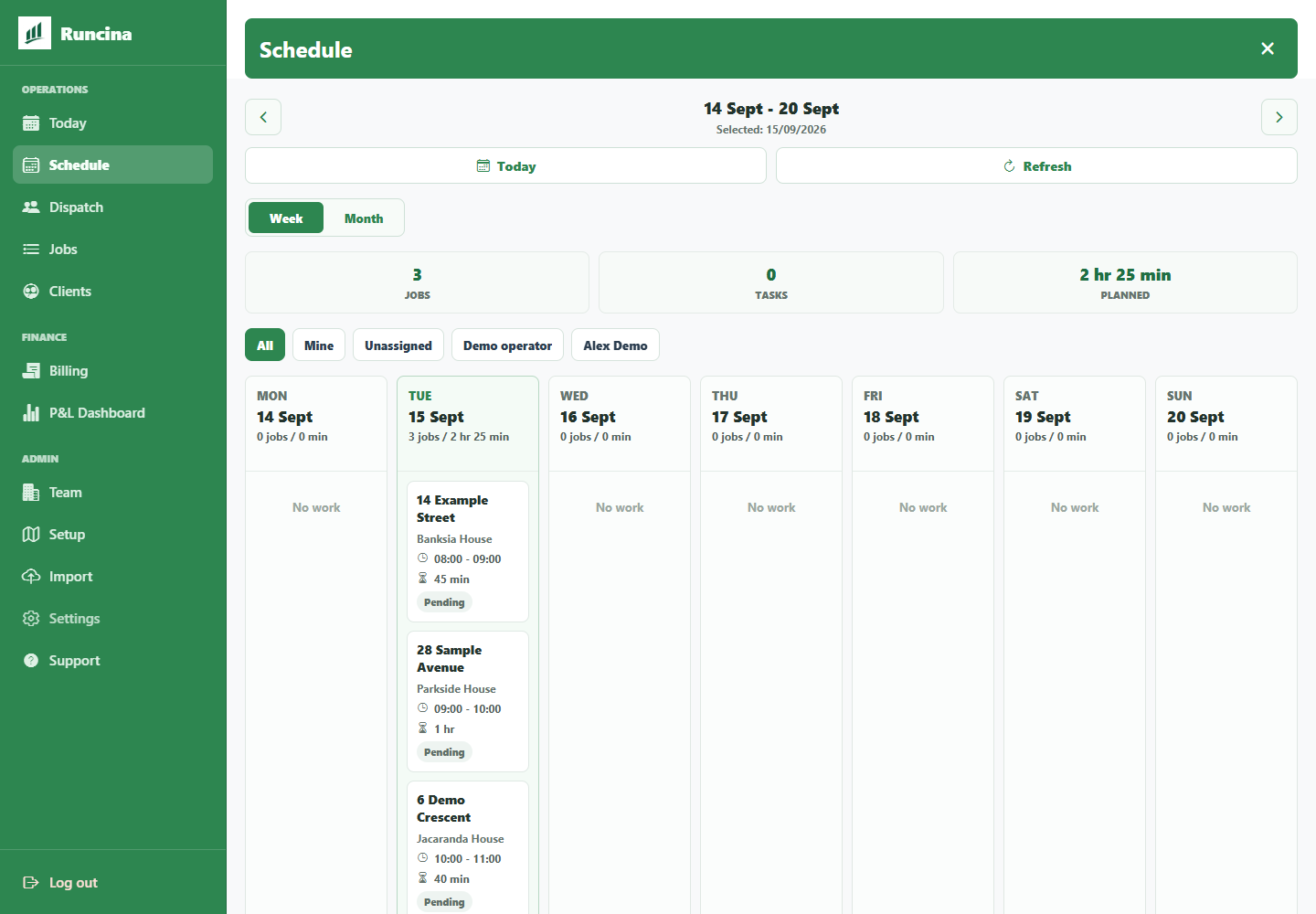
- Review the day's stops. Use the schedule to check the workload, then put the stops in the order you want to travel. Allow for travel between properties.
Already have a spreadsheet? Use the CSV import guide and template to bring in customers, properties and next visits. Check the preview before importing, then assign the work.
When does the next recurring visit appear?
Completing a recurring job creates its next pending visit. Weekly work advances seven days, fortnightly work fourteen days, and monthly work moves to the same day of the next month, or that month's last day if needed. One-time jobs do not create a follow-up.
The scheduled date sets the interval. A fortnightly job scheduled for 15 September creates a 29 September visit when completed. If you first reschedule it to 17 September, completing it creates a 1 October visit. Completing it late without changing its scheduled date still uses 15 September as the starting date.
Check the new date, assignees, arrival window and notes after completion, especially after a delay or crew change. Adding a frequency does not fill a whole year's calendar. Stop order is chosen by you; the app does not promise an automatically optimised route.
What should you do when rain delays mowing?
- Review the affected visit. Check the property conditions, crew availability and other bookings before deciding whether to move it.
- Postpone it or choose a new date. Postponing records the delay; it does not choose a replacement date for you. Rescheduling moves the visit to the date you confirm.
- Weather suggestions are coming after launch. For now, check conditions and choose the new date yourself. You remain responsible for confirming that the property is suitable for mowing.
- Tell the customer and crew. Confirm the new date and arrival window with them. Weather changes leave customer messages for you to send.
Manual scheduling and rescheduling are available at launch. Weather automation is not active.
Check the revised round before heading out
- Look for visits that are still postponed or have the wrong date.
- Check crew assignments, access notes and the order of stops.
- Allow enough time for the work and travel before confirming arrival windows.
- After completing a moved job, review the following recurring date with the customer.
Open the day's jobs while connected. If a date change is Queued, it is waiting to be sent. Reconnect, use Retry in the sync-status panel and check that the job shows the right date. See help with changes that will not save.
Try a small round first
Start with one property and its next visit. The free plan allows up to 10 active jobs; pending and in-progress jobs count towards that total.
Next, see how to hand the visit to your crew and review an invoice after the work.